Mastering Disk Management for Better Storage Control
Handle storage devices, partitions, and file systems: check available space, partition disks, and keep data reliable.
Disk management in Linux is about handling storage devices, partitions, and file systems to ensure proper allocation, performance, and data reliability. It includes tasks like checking available space, mounting/unmounting disks, creating partitions, formatting, and monitoring disk health.
Checking Disk Space and Usage
-
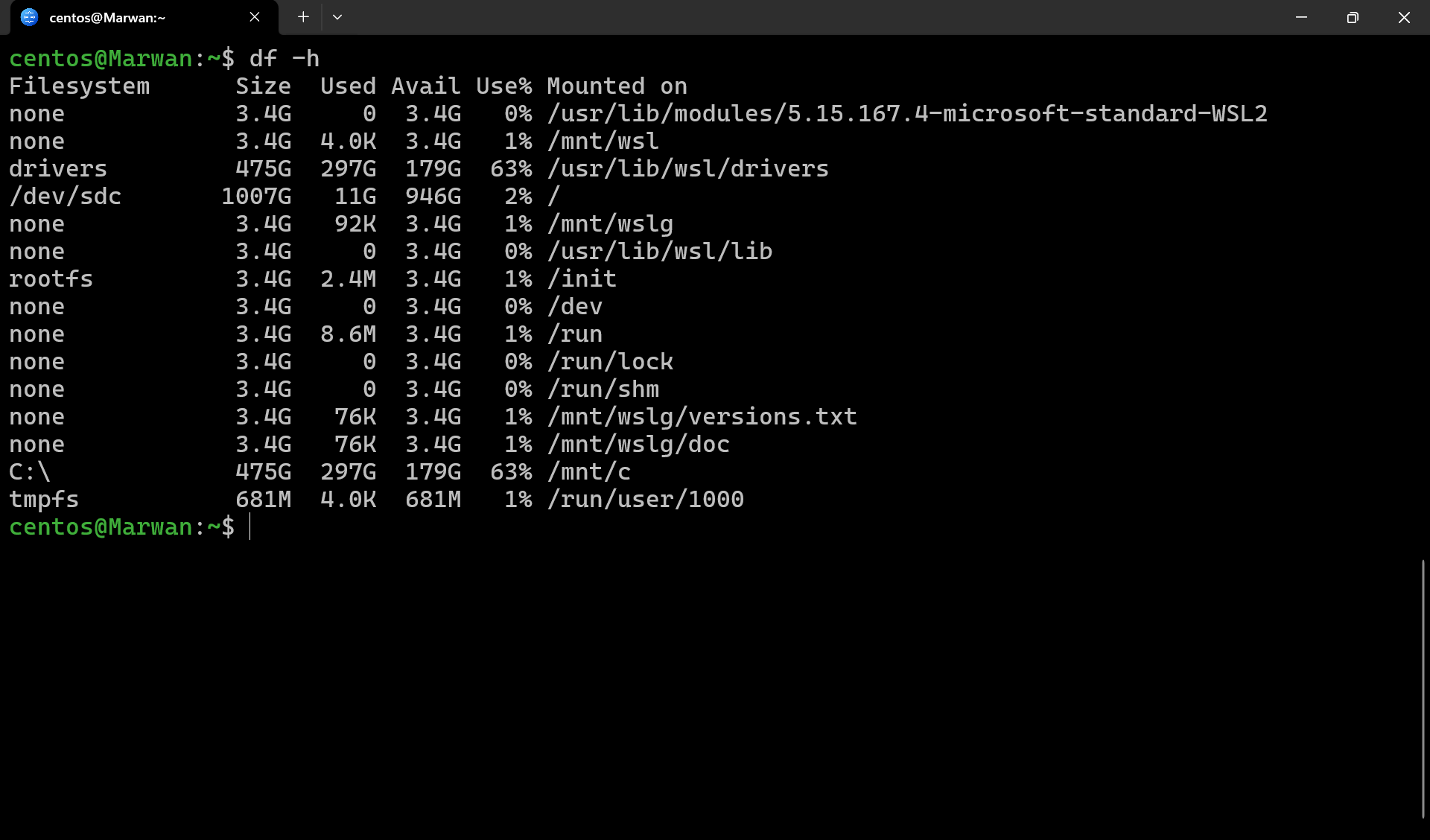
View mounted filesystems and usage
df -h(Shows disk space usage in a human-readable format)
-
Check directory/file usage
du -sh /path/to/dir
du -h --max-depth=1 /var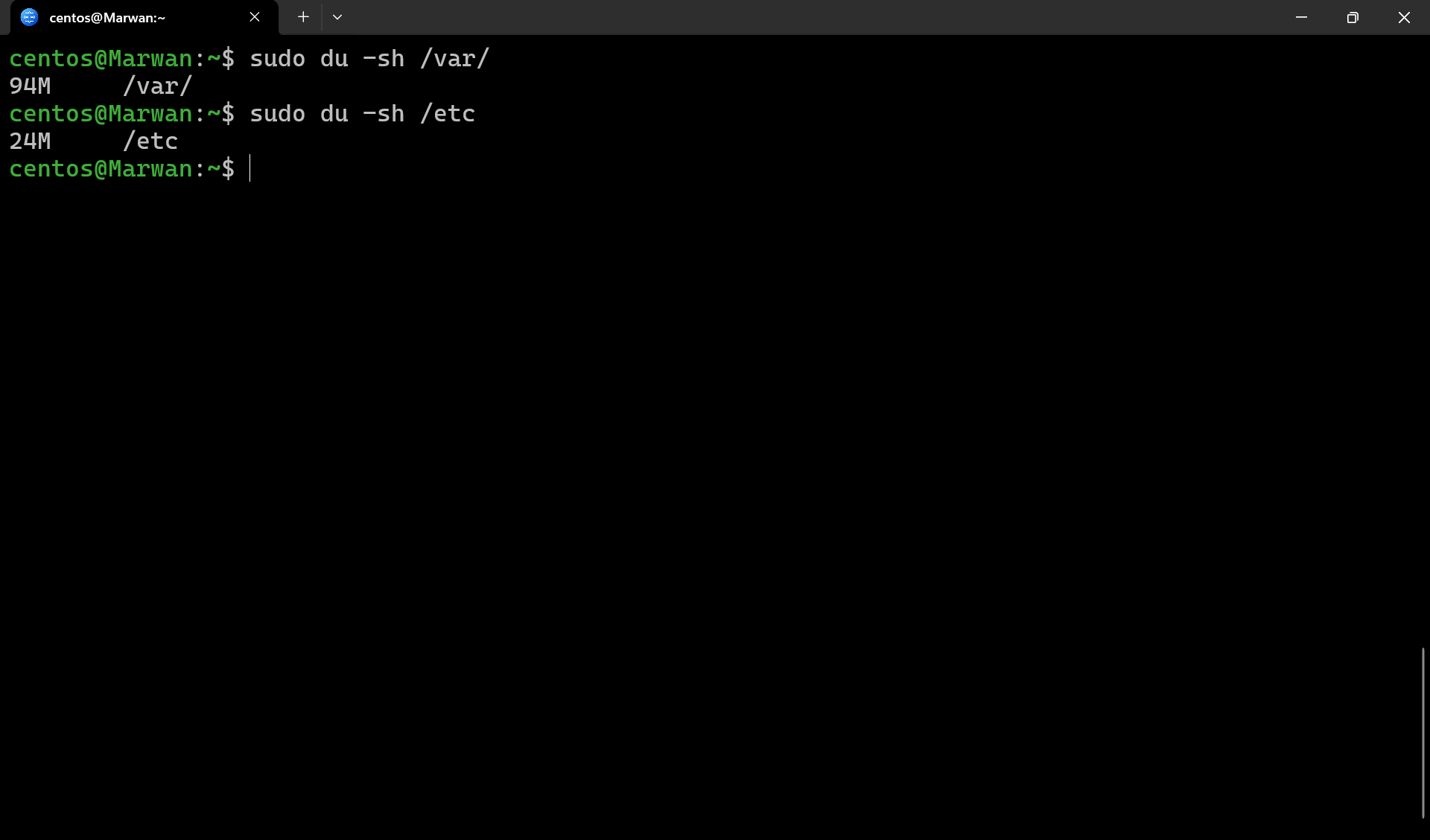
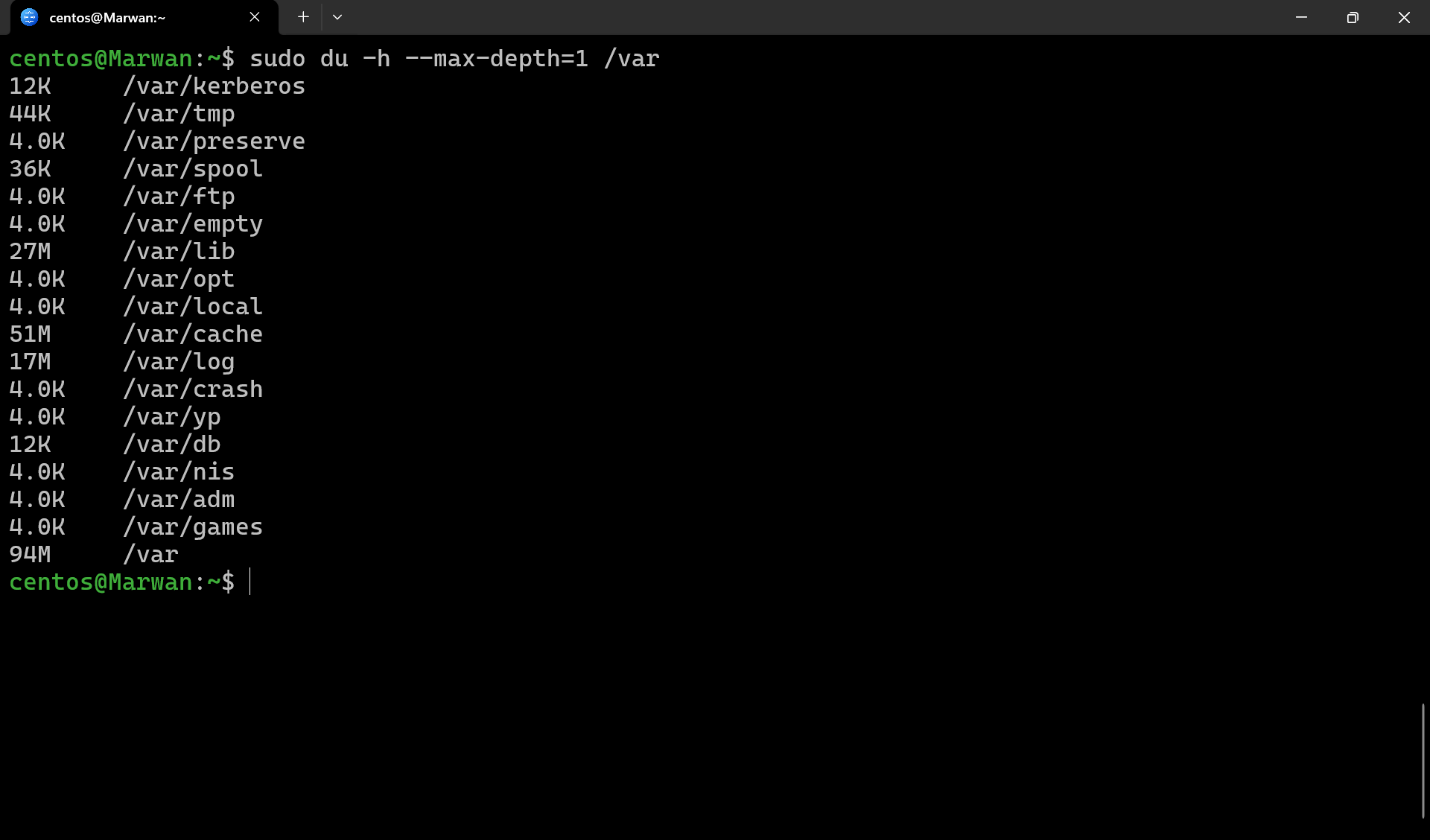
💡 Note: You can adjust the depth level based on how deeply you want to check the folder structure of a specific directory.
-
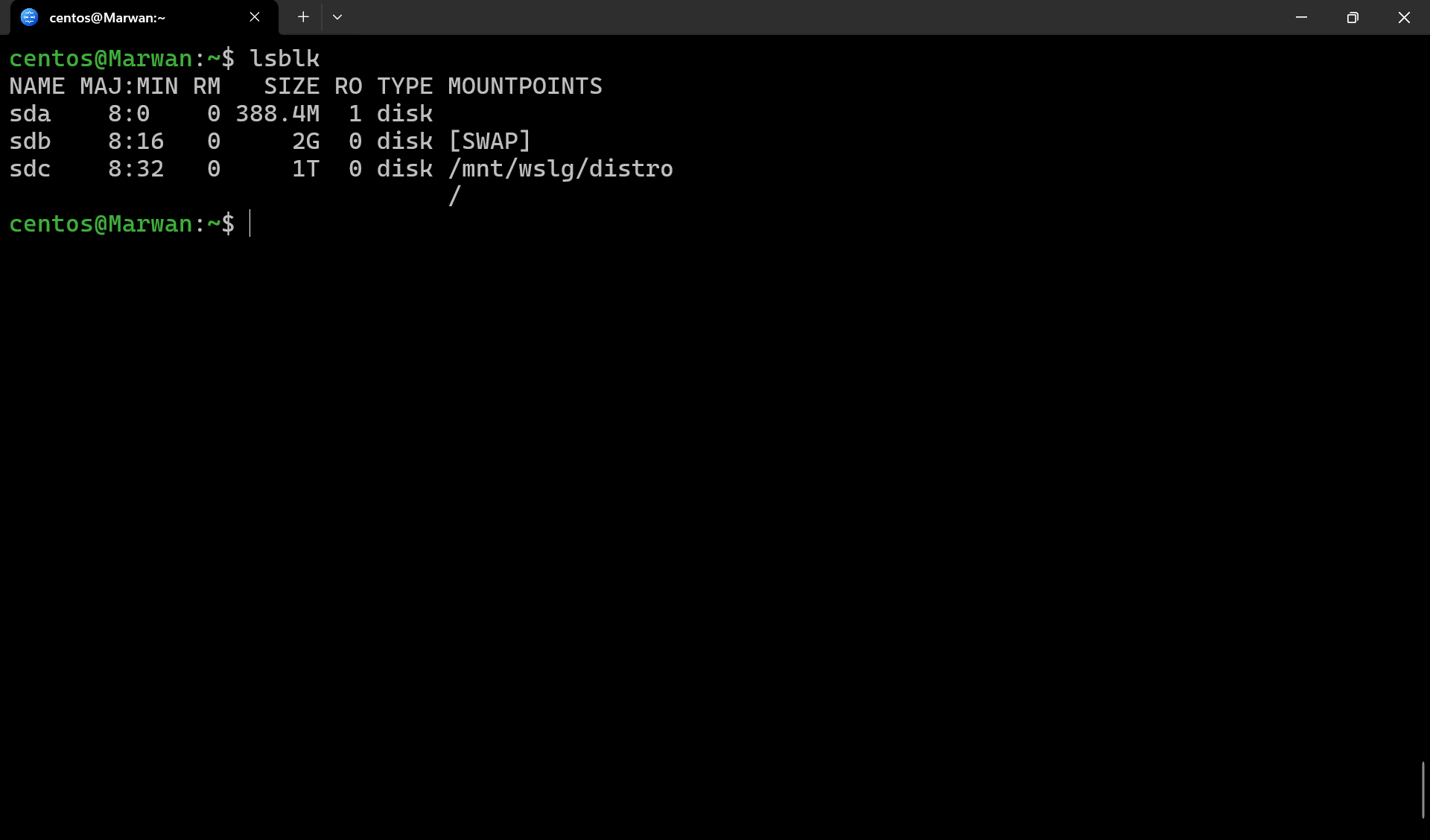
Check block devices
lsblk
Mounting and Unmounting
-
Mount a device
sudo mount /dev/sdb1 /mnt/data -
Unmount a device
sudo umount /mnt/data -
Persistent mounting → Add entry in
/etc/fstab
Example:/dev/sdb1 /mnt/data ext4 defaults 0 2You can create a one-line command to get the UUID and filesystem type from
lsblkand automatically append it to your/etc/fstabfile usingtee. This is a great way to avoid typos.
# Customize these variables
DEVICE="/dev/sda1"
MOUNT_POINT="/mnt/data"
OPTIONS="defaults,nofail"

# The command to copy and paste
UUID=$(sudo blkid -s UUID -o value "$DEVICE")
FSTYPE=$(sudo blkid -s TYPE -o value "$DEVICE")
echo "UUID=$UUID $MOUNT_POINT $FSTYPE $OPTIONS 0 2" | sudo tee -a /etc/fstab
Partition Management
-
List partitions
sudo fdisk -l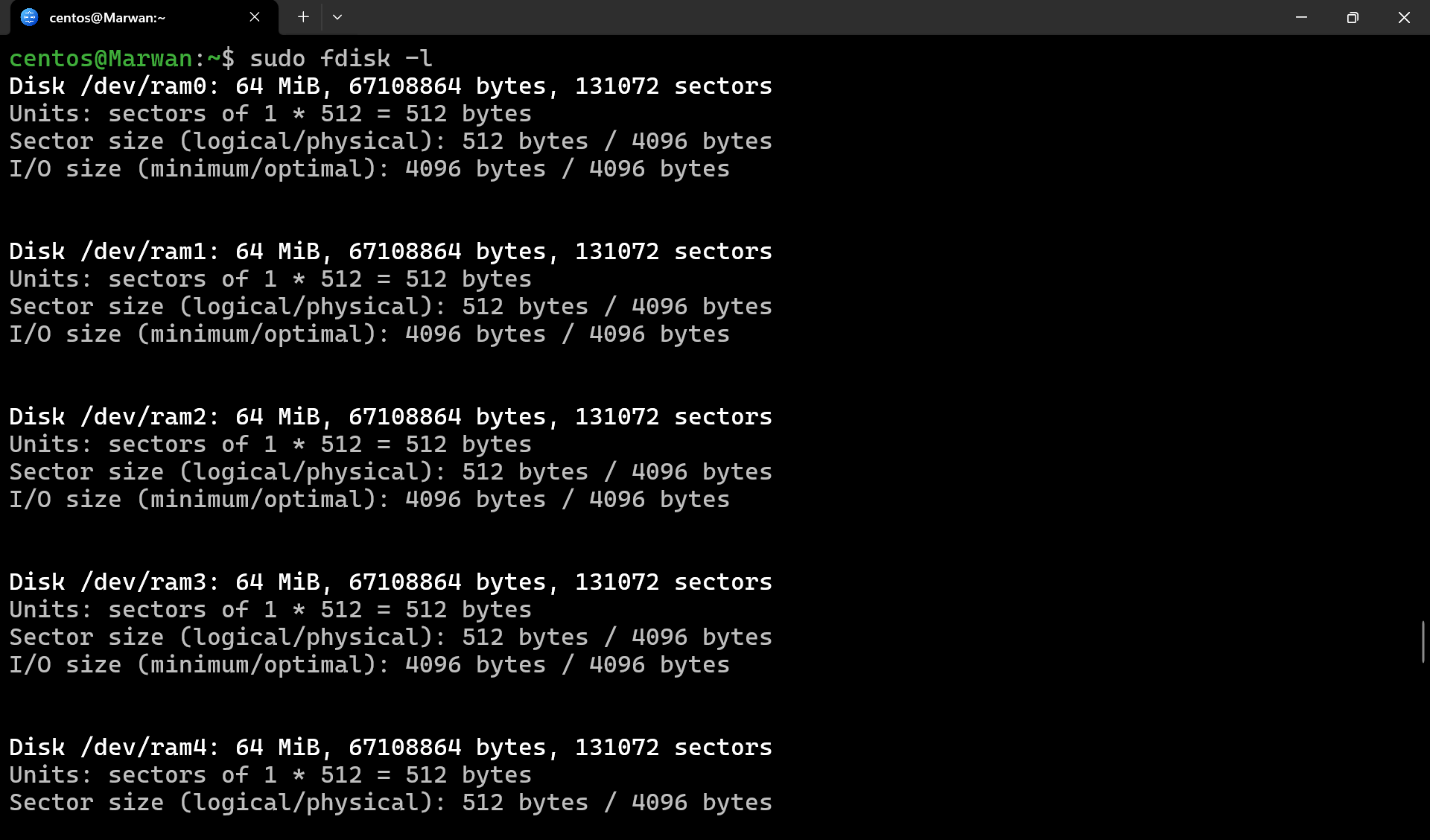
-
Create/modify partitions (interactive tools):
-
fdisk /dev/sdb(for MBR) -
parted /dev/sdb(for GPT/large disks)
-
File System Management
-
Format partition
sudo mkfs.ext4 /dev/sdb1 -
Check filesystem health
sudo fsck /dev/sdb1
Disk Monitoring & Health
-
Check disk I/O performance
sudo dnf install smartmontools # use it if you dont have this package installed in your systemiostat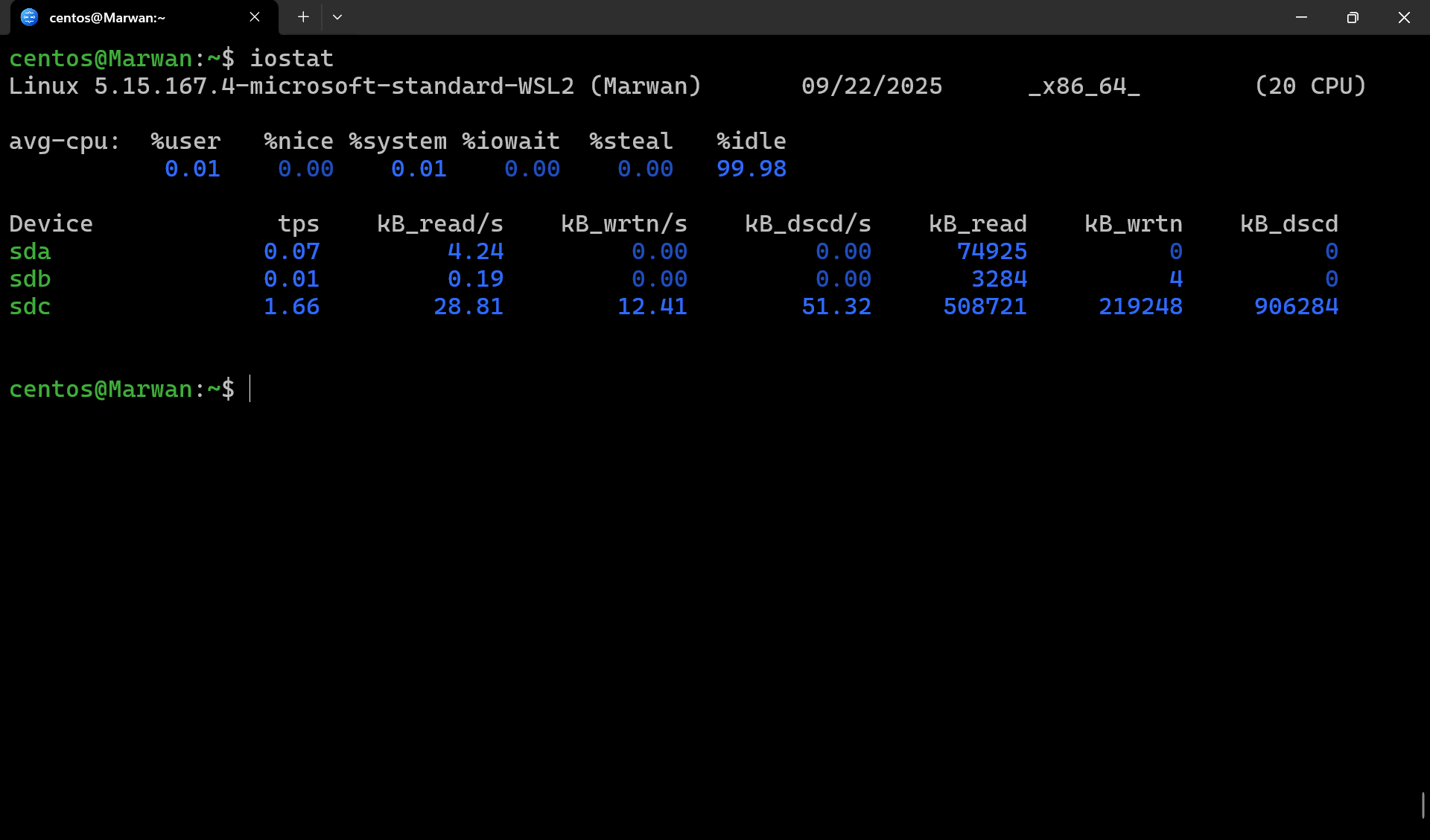
-
SMART monitoring (for hardware health)
💡 You need to download and install the package first if it is not already included with your Linux system.
-
sudo dnf install smartmontools -
sudo smartctl -a /dev/sda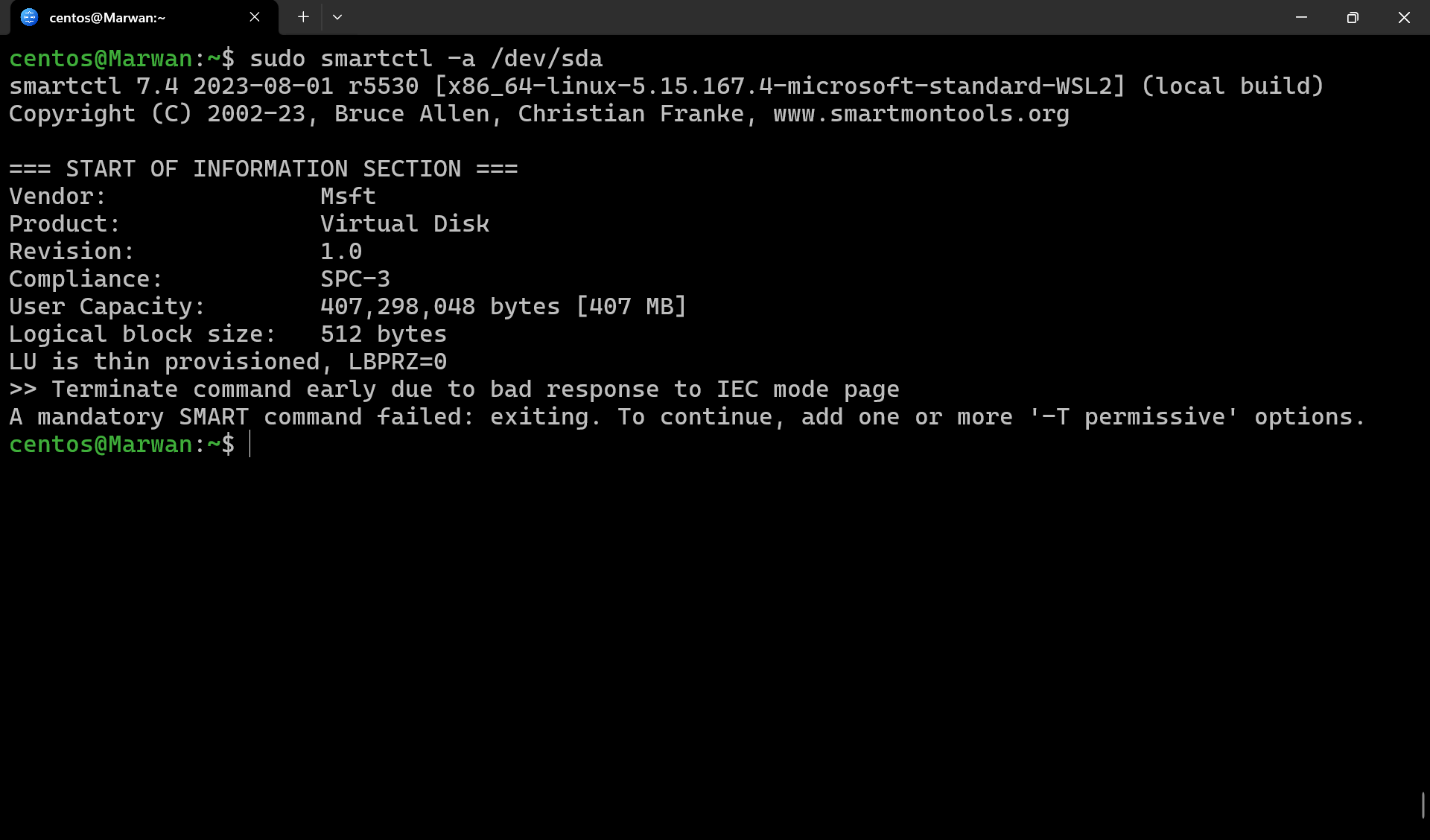
-
Check disk usage in real time
💡 You need to download and install the package first if it is not already included with your Linux system.
iotop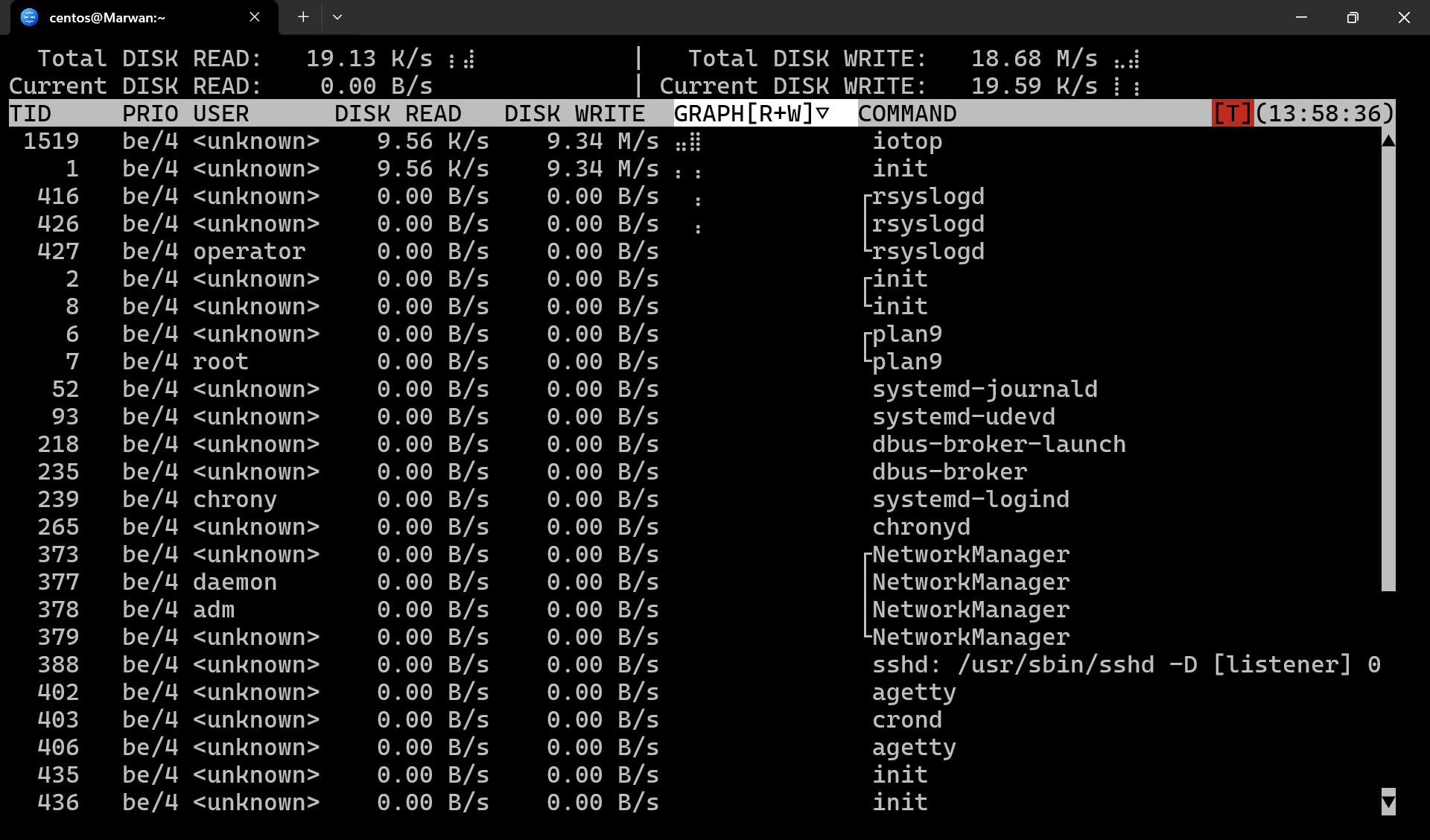
Key Takeaways
-
dfanddu→ check usage. -
mount,umount,/etc/fstab→ control mounting. -
fdisk/parted→ manage partitions. -
mkfs,fsck→ handle file systems. -
smartctl,iostat,iotop→ monitor health and performance.
Disk Management Cheatsheet
| Category | Command | Description |
|---|---|---|
| Check Disk Usage | df -h | Show mounted filesystems with usage in human-readable format |
du -sh /path | Show total size of a directory | |
lsblk | List block devices (disks & partitions) | |
| Mount / Unmount | sudo mount /dev/sdb1 /mnt/data | Mount partition to directory |
sudo umount /mnt/data | Unmount partition | |
/etc/fstab | File for persistent mounts | |
| Partitioning | sudo fdisk -l | List partitions |
sudo fdisk /dev/sdb | Partition disk (MBR) | |
sudo parted /dev/sdb | Partition disk (GPT / large disks) | |
| File System | sudo mkfs.ext4 /dev/sdb1 | Format partition as ext4 |
sudo fsck /dev/sdb1 | Check/repair filesystem | |
| Monitoring & Health | iostat | Show I/O statistics |
sudo iotop | Real-time I/O usage per process | |
sudo smartctl -a /dev/sda | Check disk health (SMART info) |
⚡ Quick Mnemonics:
-
df/du → Usage
-
mount/umount/fstab → Access
-
fdisk/parted → Partitions
-
mkfs/fsck → Filesystems
-
iostat/iotop/smartctl → Monitoring
Conclusion
You’ve successfully completed the Linux Fundamentals Series 🚀.
So far, you’ve learned:
-
Basic Commands
-
File Permissions & Ownership
-
User & Group Management
-
Package Management
-
Scheduling (cron & at)
-
Shell Scripting Fundamentals
-
Networking Basics
-
Disk Management
With these skills, you can confidently manage a Linux system, automate tasks, configure networks, and handle storage.
Thank You!
Thank you for following along this journey. Your consistency and curiosity are what will make you a great Linux administrator. 🐧
Stay tuned for Linux Admin 2 — where we’ll go deeper into advanced administration, storage, networking, and security.
“Linux is not just an OS, it’s a mindset — keep experimenting, keep learning.” 💻
What’s Next?
Would you like to:
-
Continue with Linux Admin 2 → Advanced topics like LVM, RAID, systemd, and security, or
-
Jump into DevOps → Hands-on with Docker, Kubernetes, and Ansible?
The choice is yours, depending on whether you want to master Linux deeper first or move toward DevOps and cloud workflows.
Contact
If you notice any mistakes, broken commands, or unclear sections in these articles, feel free to reach out with feedback or questions. Your input helps improve the series for everyone.