Beginner's Guide to Networking Essentials in Linux
Networking is at the heart of Linux system administration and DevOps. Whether you’re managing servers, debugging applications, or configuring firewalls, understanding Linux networking is essential
Networking is at the heart of Linux system administration and DevOps. Whether you’re managing servers, debugging applications, or configuring firewalls, understanding Linux networking is essential. In this guide, we’ll cover the core networking fundamentals in Linux, along with some common commands to help you get started.
Understanding Network Interfaces
A network interface is the connection between your Linux machine and the network (wired, wireless, or virtual).
-
Loopback (lo) → Used for local communication within the system (
127.0.0.1). -
Ethernet (eth0, enp0s3, etc.) → Physical wired interfaces.
-
Wireless (wlan0, wlp2s0, etc.) → Wireless interfaces.
-
Virtual Interfaces → Created by containers, VMs, or tunneling (e.g.,
docker0,tun0).
Check interfaces:
ip link show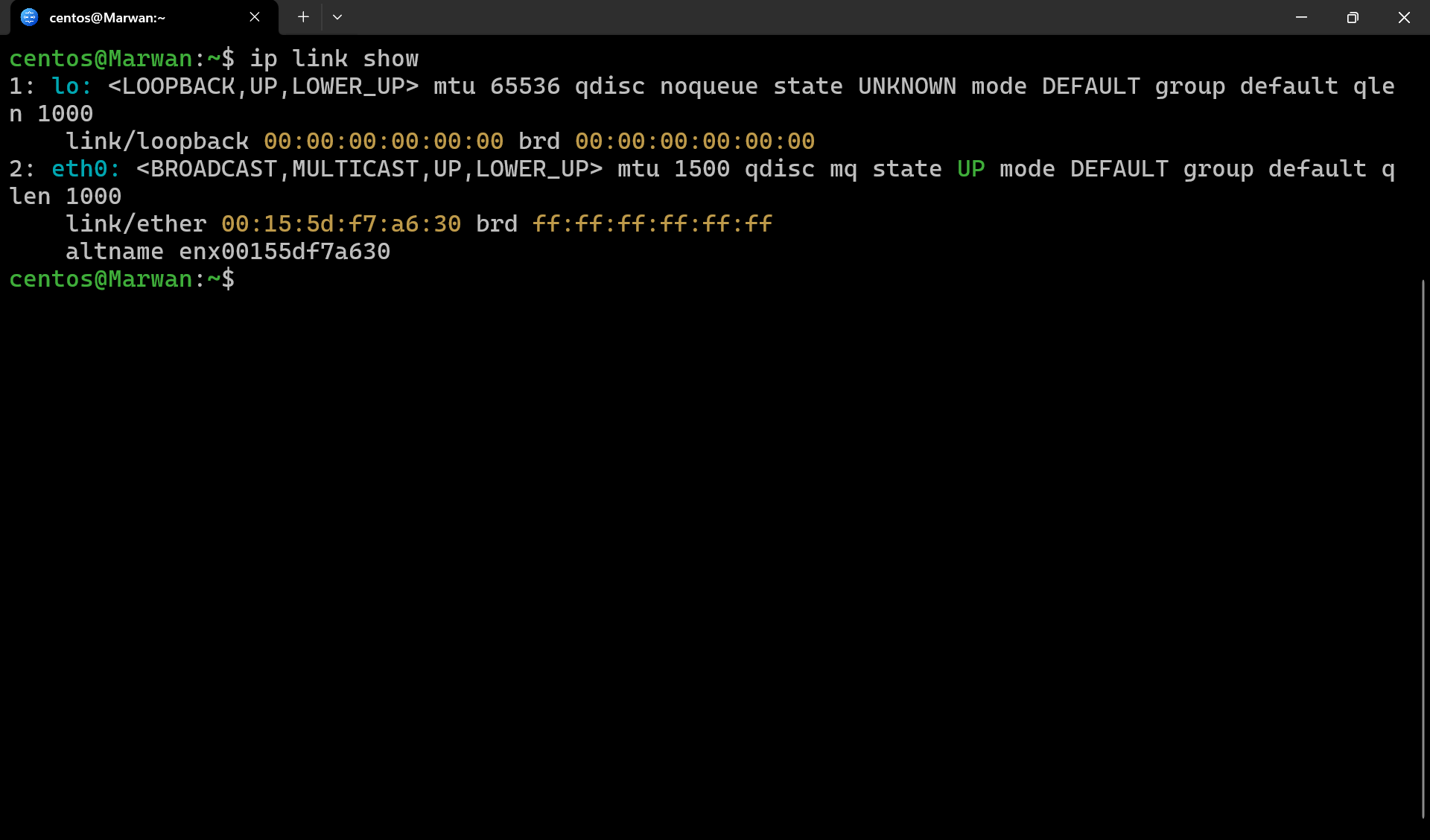
IP Addressing Basics
Every network interface needs an IP address to communicate.
-
IPv4: e.g.,
192.168.1.10 -
IPv6: e.g.,
fe80::1a2b:3c4d:5e6f:7g8h
View IP addresses:
ip addr show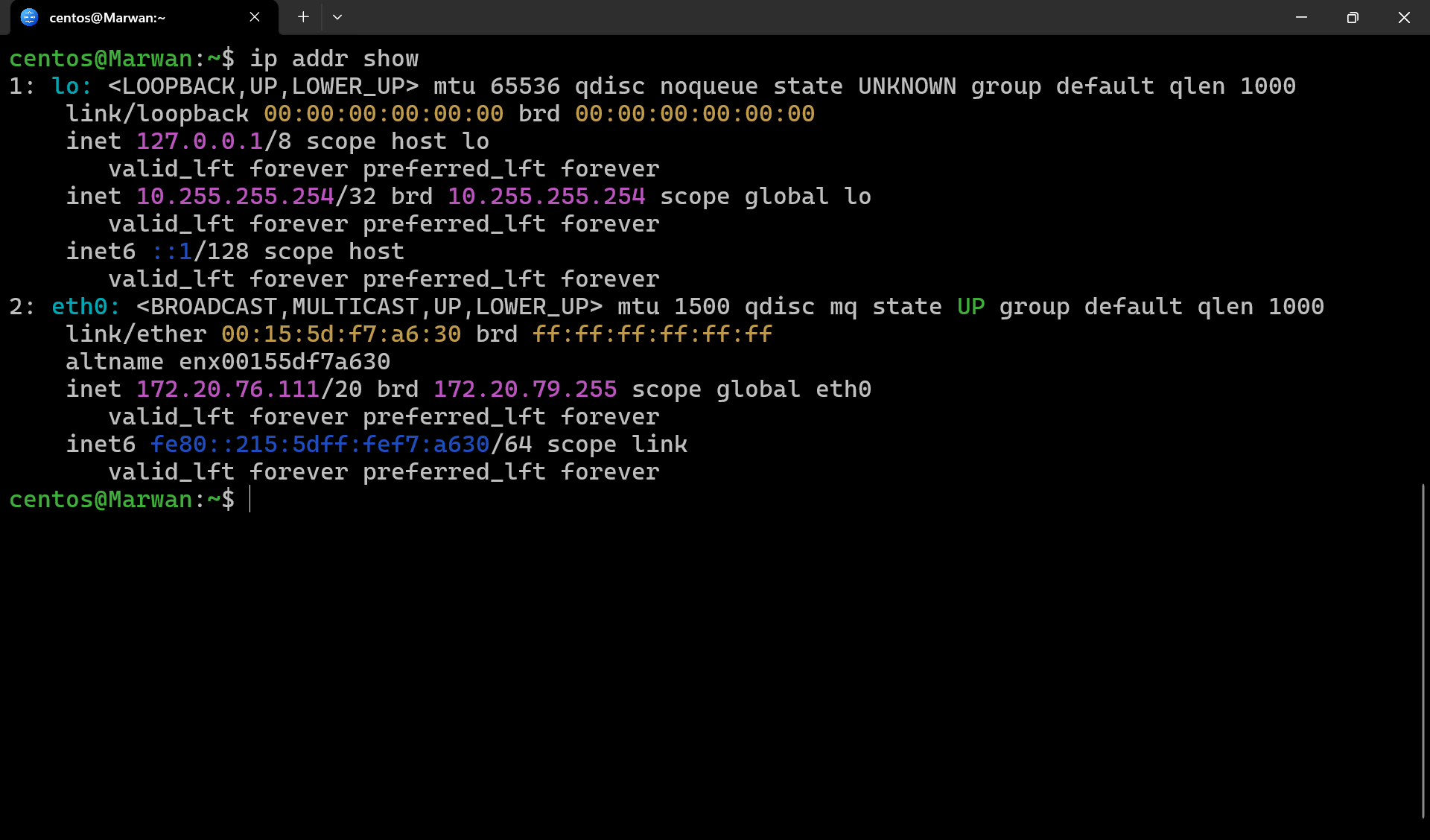
Assign an IP manually:
sudo ip addr add 192.168.1.50/24 dev eth0Routing and Gateways
Routing determines how packets leave your machine and reach other networks.
- Default Gateway → Router that forwards traffic outside your local network.
Check routing table:
ip route showExample output:
default via 192.168.1.1 dev eth0
192.168.1.0/24 dev eth0 proto kernel scope link src 192.168.1.50
DNS (Domain Name System)
DNS resolves hostnames (like google.com) to IP addresses.
-
Config file:
/etc/resolv.conf -
Example:
nameserver 8.8.8.8
nameserver 1.1.1.1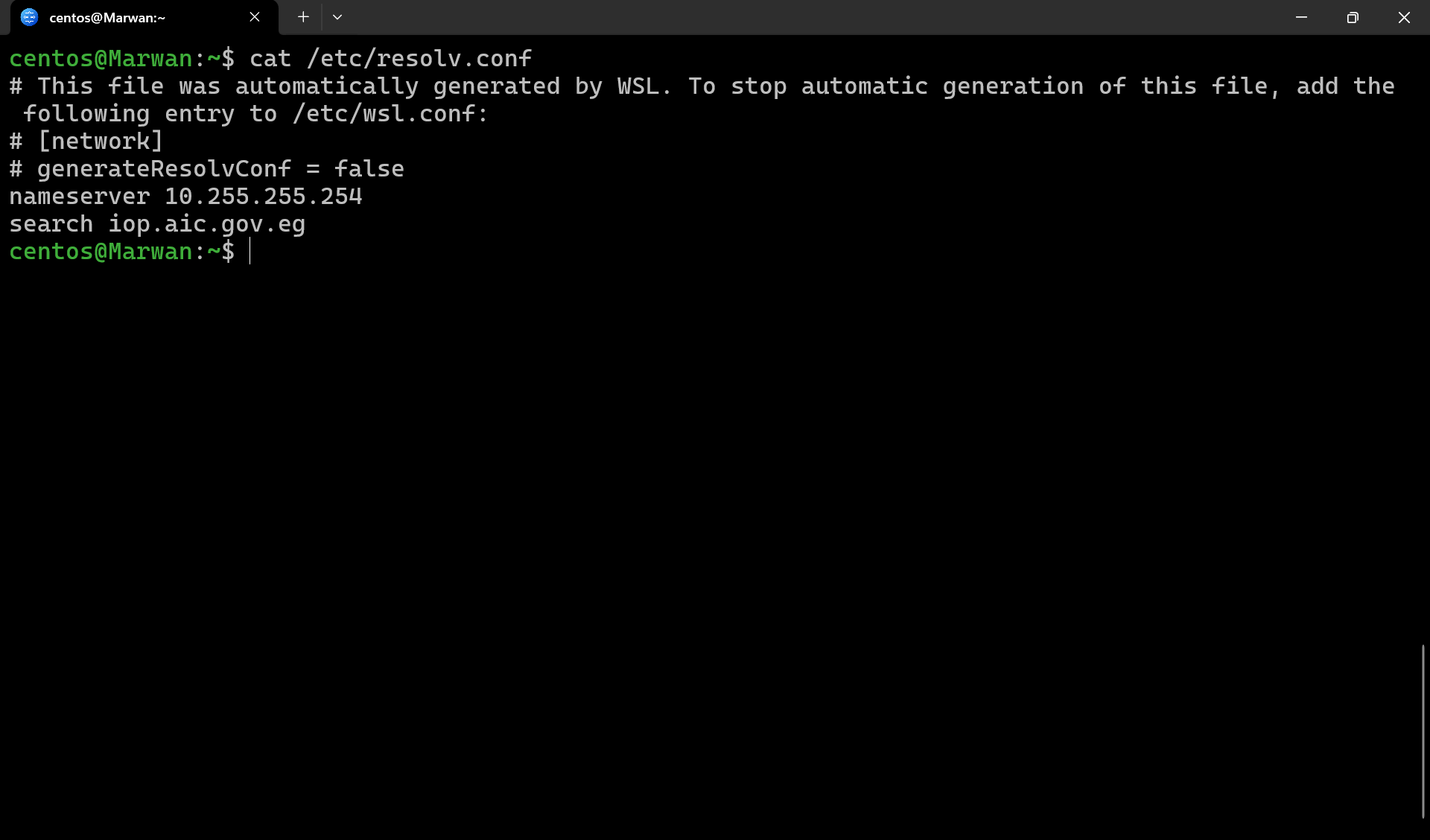
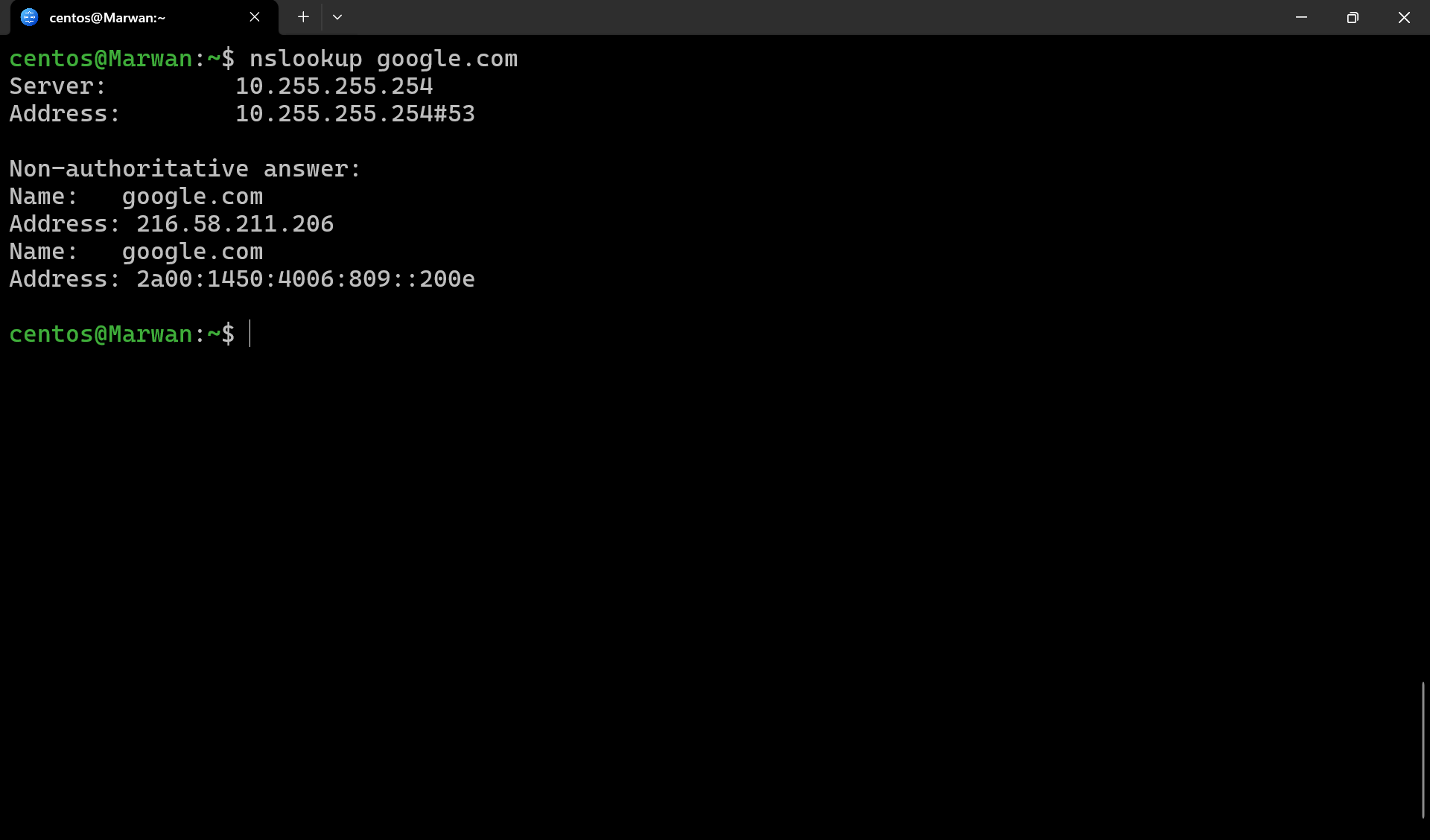
Test DNS resolution:
dig google.com
nslookup github.com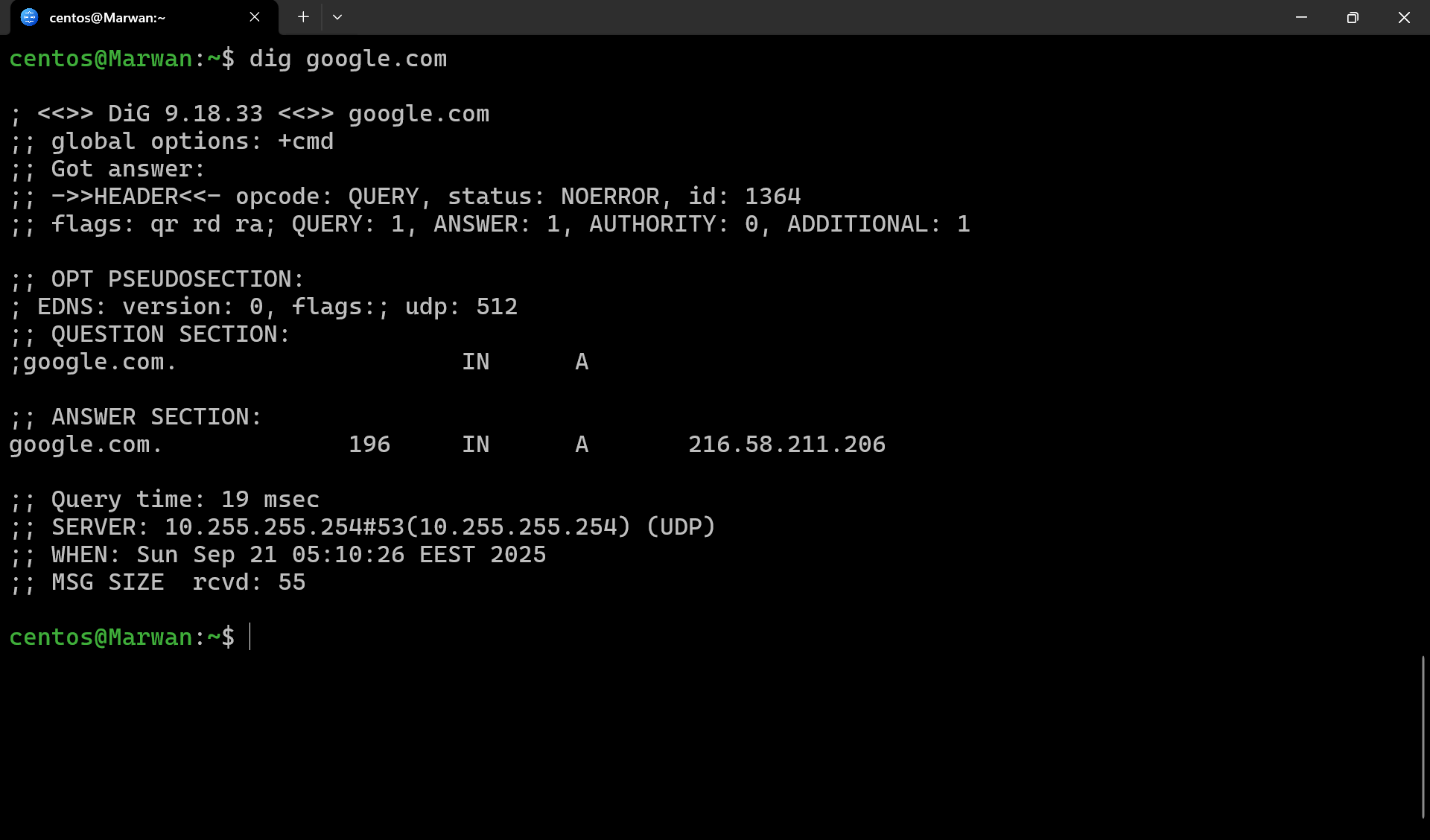
Essential Networking Commands
Here are the most important tools for troubleshooting and managing networking in Linux:
-
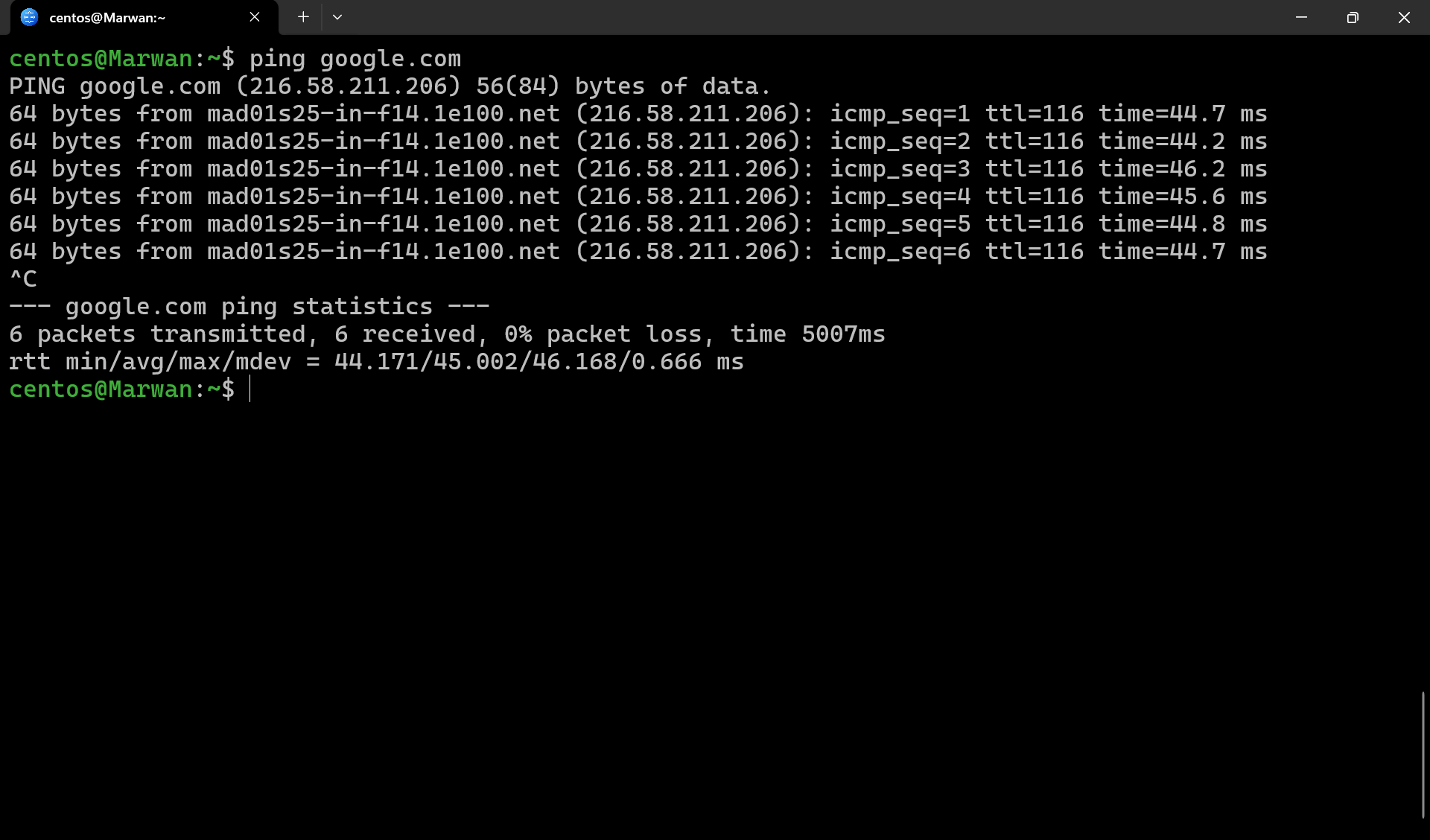
ping→ Test connectivity -
-
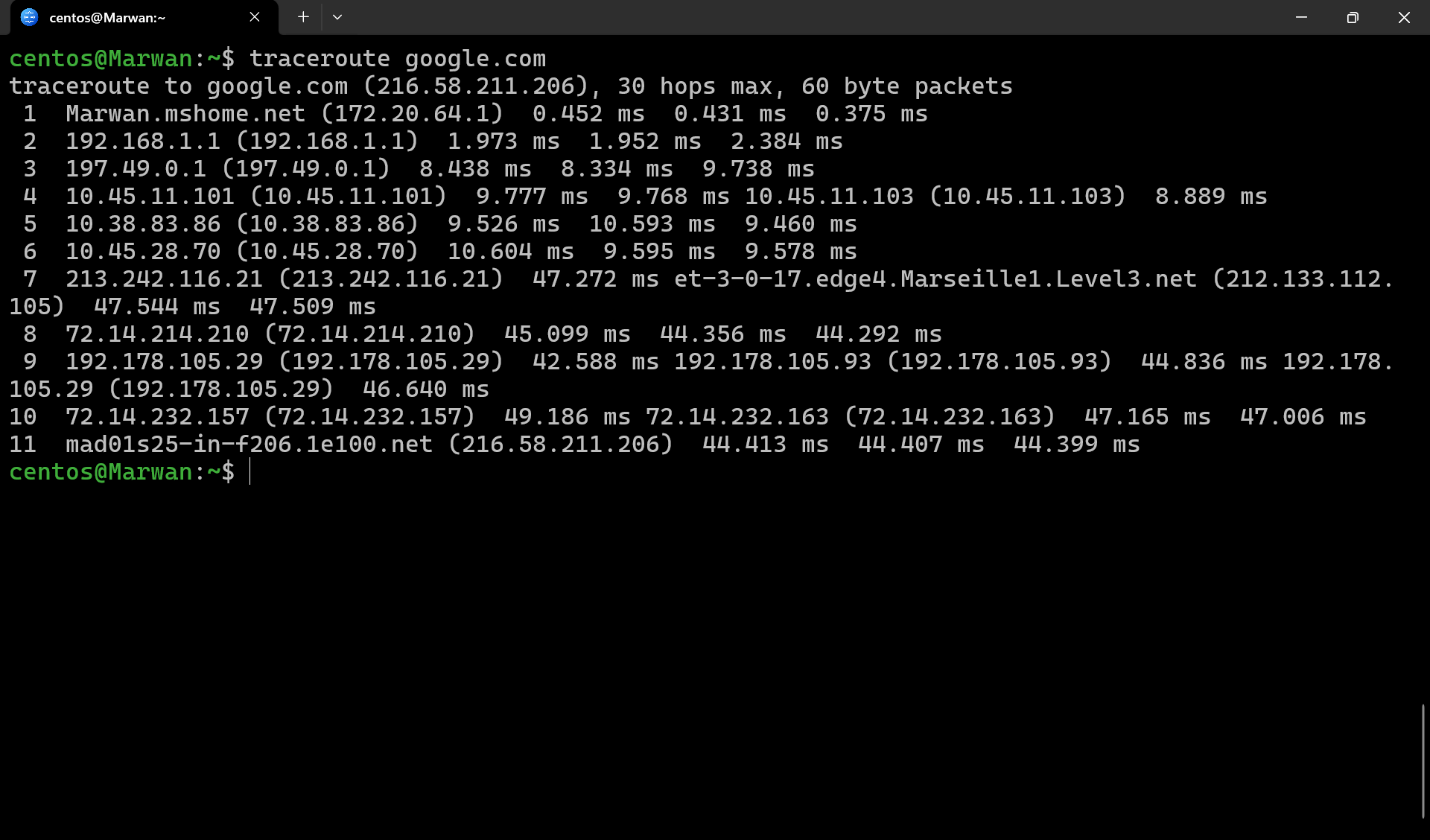
traceroute→ Trace the path packets take
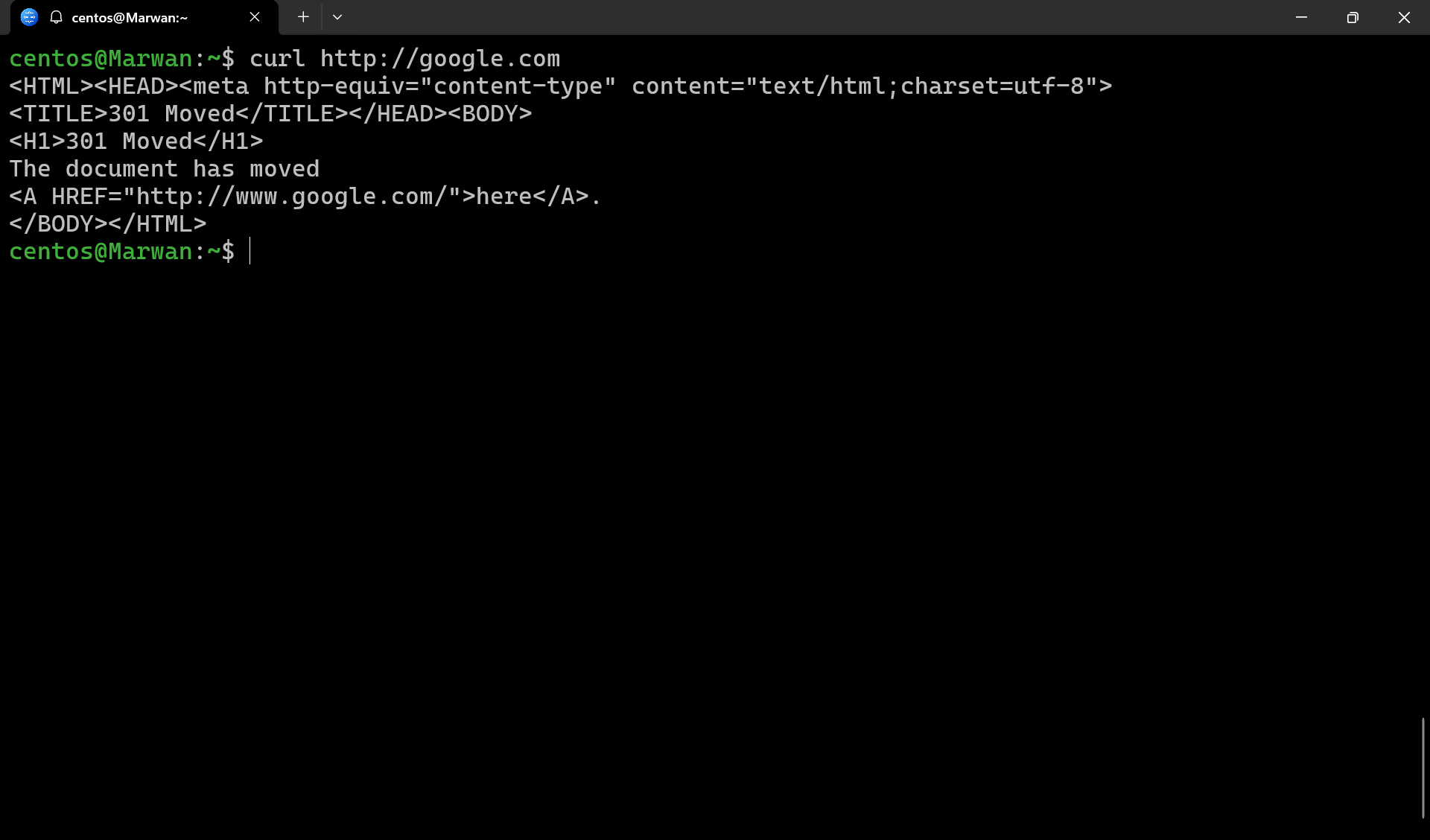
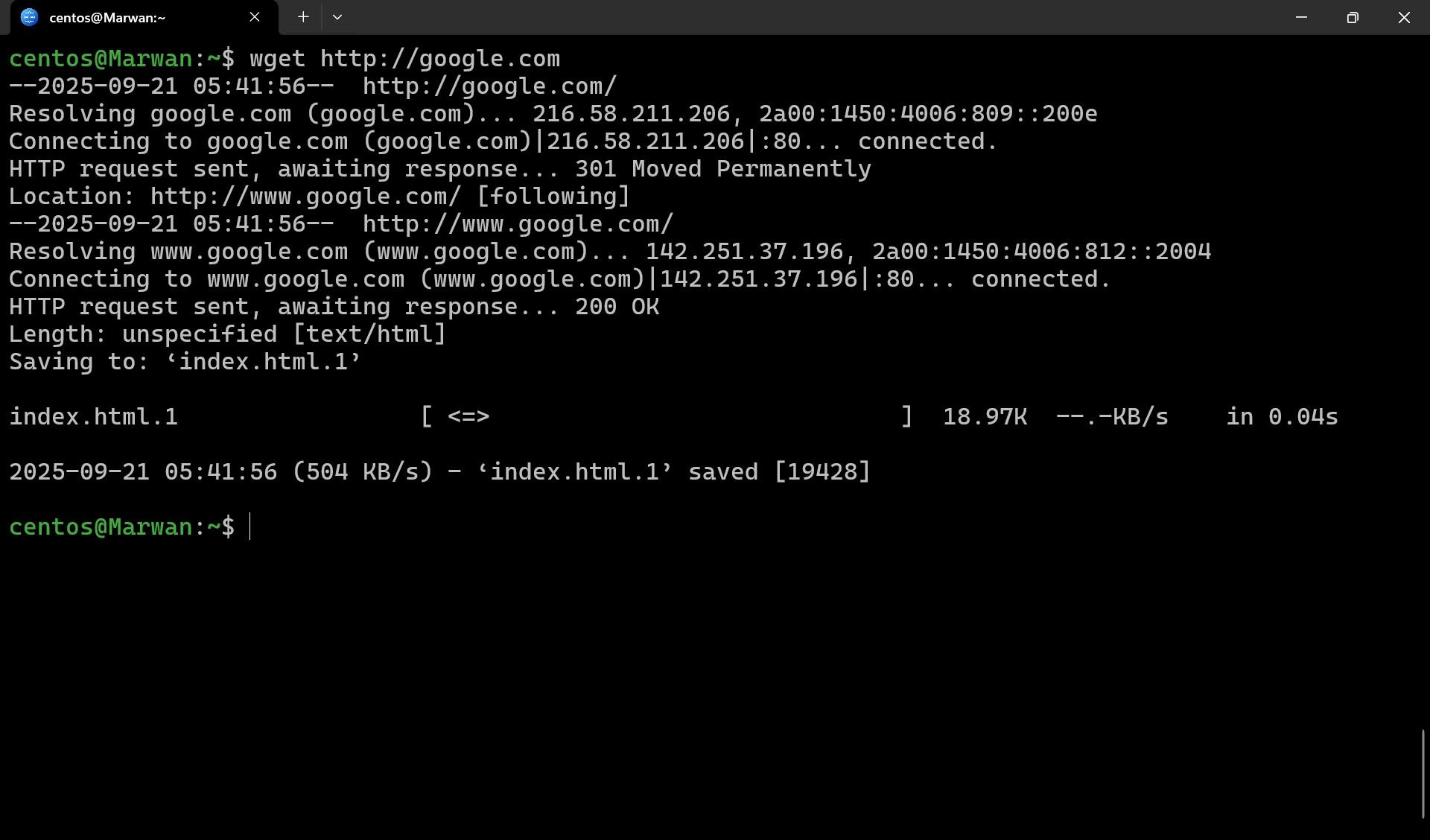
curl/wget→ Fetch URLs
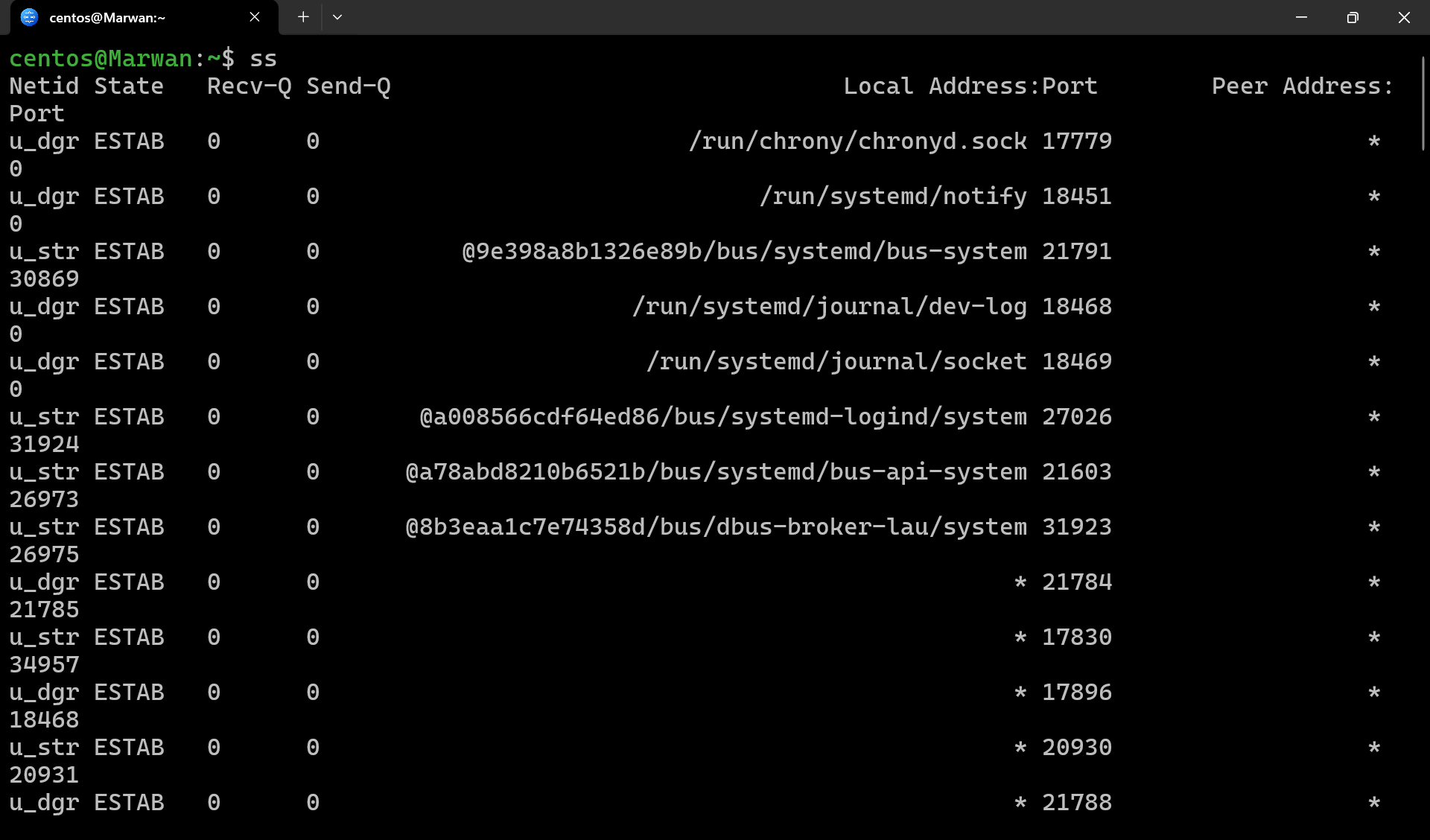
netstatorss→ View open ports and connections
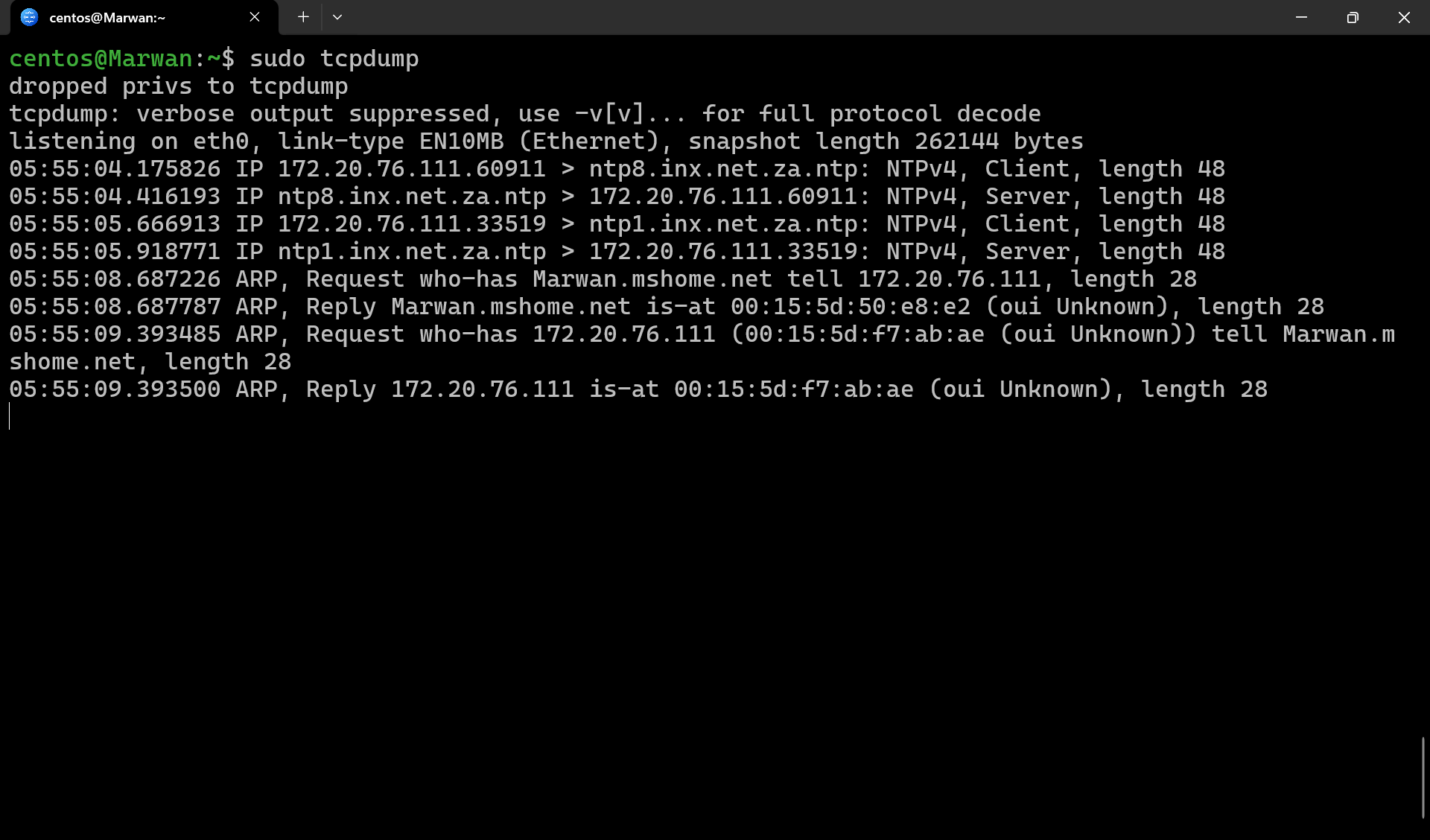
tcpdump→ Capture network packets
Hands-on Labs
Learning networking in Linux is best done through practice. Below are some labs you can try on your own machine or a cloud VM.
🟢 Lab 1: Check and Configure Network Interfaces (Beginner)
-
List all network interfaces:
ip link show -
Display IP addresses:
ip addr show -
Assign a temporary IP address to an interface (replace
eth0with your interface):sudo ip addr add 192.168.1.100/24 dev eth0 -
Test connectivity:
ping -c 4 8.8.8.8
Goal: Understand how to view and configure basic network settings.
🟡 Lab 2: Explore Routing and Gateways (Intermediate)
-
Show your routing table:
ip route show -
Add a new route (example to reach
10.0.0.0/24via gateway192.168.1.1):sudo ip route add 10.0.0.0/24 via 192.168.1.1 -
Verify connectivity with
pingortraceroute:traceroute google.com -
Remove the route when finished:
sudo ip route del 10.0.0.0/24
Goal: Learn how Linux decides where to send packets.
🔴 Lab 3: Network Diagnostics with ss and tcpdump (Advanced)
-
Check active listening ports:
ss -tuln -
Start a simple Python HTTP server on port 8080:
python3 -m http.server 8080 -
Verify it’s running:
ss -tuln | grep 8080 -
Capture packets on your interface (replace
eth0):sudo tcpdump -i eth0 port 8080 -
Open another terminal and access:
curl http://localhost:8080You should see HTTP requests in
tcpdump.
Goal: Get comfortable analyzing real network traffic.
Conclusion
Linux networking fundamentals—interfaces, IP addressing, routing, DNS, and firewall rules—form the foundation of system administration and DevOps. By practicing these labs, you’ll strengthen both your theory and hands-on troubleshooting skills.